
An I-9 is a federal form that is used to verify the identity of a person and legal employment eligibility for both citizens and non-citizens. onDiem employees complete the I-9 process as part of our onboarding requirements upon working their first shift. This is completed electronically
through our portal.
To complete this process you will be required to upload a photo of identification documents to confirm your legal employment eligibility. To see a list of the documents you can provide please click here: https://www.uscis.gov/i-9-central/form-i-9-acceptable-document or view below.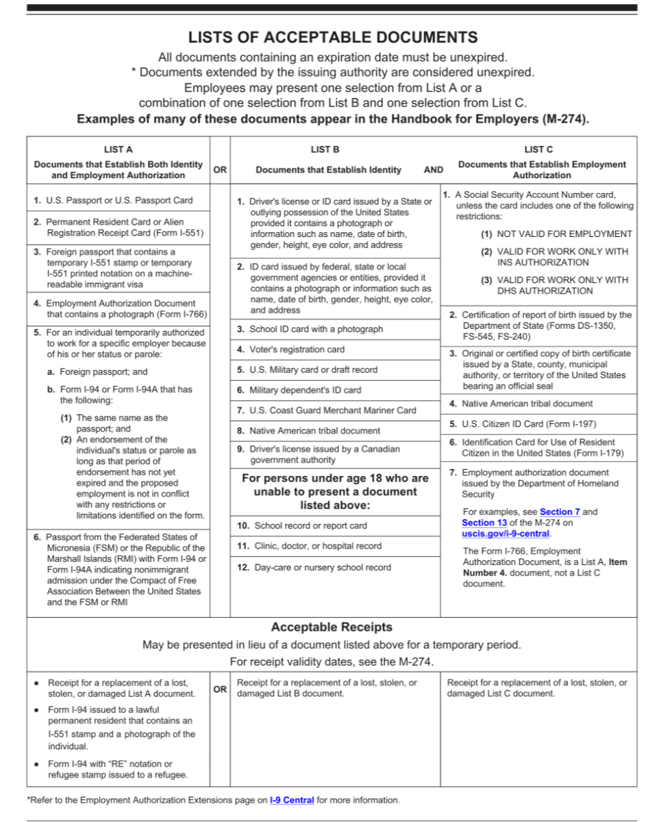
Step-by-Step Instructions
1.Log In
Go to onDiem.com
Click Login and sign in with your registered email and password.
2.Access the Employee Portal
Click on your profile dropdown menu (upper right corner).
Select “Employee Portal.”
3.Open I-9 Verification
Once in the Employee Portal, click the card labeled “I-9 Verification.”
4.Complete the I-9 Form
Fill out the form with your personal information.
Upload your acceptable identification documents (as required by the Federal Government).
Tip: A link to the full list of acceptable documents is located at the top of the I-9 Verification section.
5.Upload Required Documents
Acceptable document combinations include:
One document from List A, or one document from List B and one from List C
Examples & Notes:
If you upload a U.S. Passport, include both the photo page and the barcode page.
If using a Permanent Resident Card or Employment Authorization Card, upload front and back.
Ensure documents are clear and legible.
6. Review Your Information
Once complete, click “Continue to Review.”
7. Review Screen
You will see a summary screen confirming your information.
8. Email from onDiem Human Resources
Check your email for a message from onDiem Human Resources with the subject line: “I-9 for onDiem – [Your Name] – Signature requested by onDiem Human Resources”
9. Review and Sign the I-9
Click “Review and Sign.”
10. Sign Electronically
When the document opens, click “Get Started” (upper right corner).
Click “Click to sign” in the Employee Signature space to add your signature.
11. Finalize the Process
Click “Continue” (upper right). Then click “I Agree.”
12. Confirmation Email
You will receive another email with the subject line:
“You just signed the I-9 for onDiem – [Your Name]”
✅ You’re all set!
Your I-9 is now complete and under review by our HR team.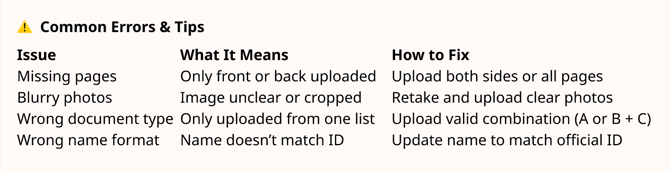
What Happens Next
If any corrections are needed, you’ll receive an email from onDiem Human Resources with instructions on what to update. Once approved, your I-9 verification will show as Complete in your Employee Portal.
Quick Reminder:
You must provide either:
One document from List A, or
One document from both List B and List C
View the official list of acceptable documents ➜ https://www.uscis.gov/i-9-central/form-i-9-acceptable-document or view below.